

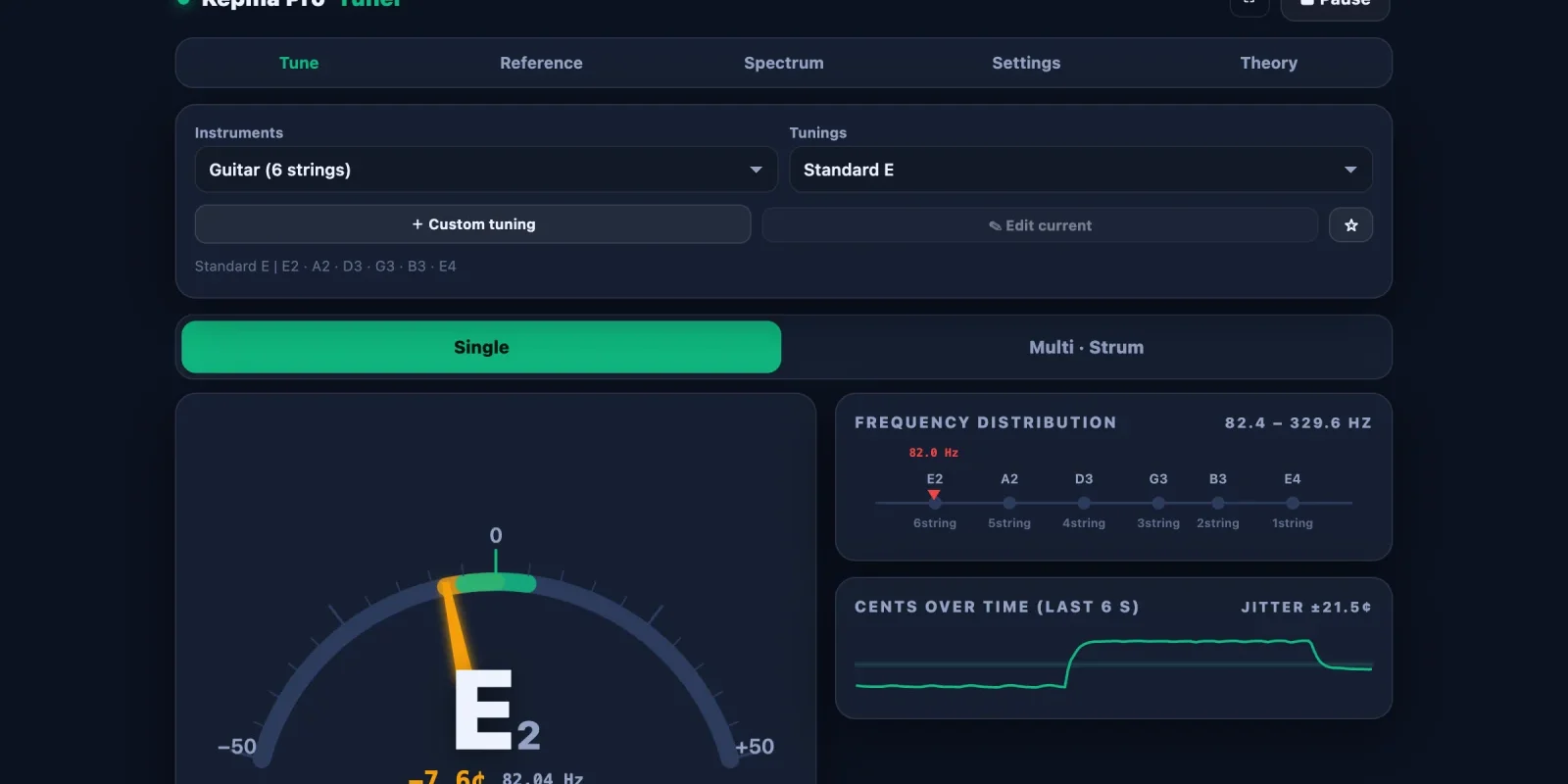
Strings drift with temperature, humidity and playing, so tuning is the first thing to do every time you pick up the guitar. The Kepma online tuner runs in your browser, with nothing to download or install, on a phone, tablet or computer. This guide follows the order of the page and explains how to use each feature.
- 59instrument presets, from guitar and bass to erhu and guzheng
- 33guitar tunings, plus your own custom tunings and favourites
- 2tuning modes: one string at a time, or a full strum
- 380–500 Hzadjustable range for the A4 reference pitch
- 8temperaments, including just intonation and historical systems
- 5 + 35 colour themes and 3 dial styles
Open the tuner in a new window, keep your guitar within reach, and try each step as you read it.
Open the tuner → Free to use, no sign-up. You will need to allow microphone access in your browser.01Quick start in three steps
If you just want to get in tune now, these three steps are enough. The defaults are six-string guitar, standard tuning (E A D G B E) and A4 = 440 Hz.
- Enable the microphoneOpen the tuner page, select “Enable microphone” at the top right, and choose Allow when your browser asks.
- Play one stringPut the phone or computer near the guitar, pluck a single open string and let it ring. First check that the note name on the dial is the one this string should have (from the 6th string to the 1st: E A D G B E).
- Turn until it goes greenFollow the prompt: tighten slowly if the note is flat, loosen slowly if it is sharp, until you see “✓ In tune”. Then move on to the next string.
02The layout: five tabs
Five tabs across the top of the page hold five groups of features. Next to the microphone switch at the top right there is a full-screen button, which is handy when the phone sits on a music stand. “How to use” at the bottom right opens the short instructions built into the page.
| Tab | What it is for |
|---|---|
| Tune | The main view. Choose the instrument and tuning, then bring each string to pitch with the dial or the strum view. |
| Reference | Plays the correct note for each string, or any semitone, so you can compare by ear. |
| Spectrum | Shows the frequency content and waveform of the sound in real time. |
| Settings | Reference pitch, temperament, capo, display style, tolerance, microphone input and data backup. |
| Theory | Notes on string vibration, cents, harmonics and the detection algorithm, plus the list of shortcuts. |
03Choosing an instrument and tuning
The “Tune” tab starts with two menus. Choose the instrument first, and the tuning menu changes to the tunings available for it. The small line under the menus lists the target note of every string in the current tuning: for standard tuning, E2 · A2 · D3 · G3 · B3 · E4.
Built-in instruments
- Guitars: six-string, classical, 7-string, 8-string, 12-string, baritone, resonator and steel guitars.
- Basses and bowed strings: 4-, 5- and 6-string bass, double bass, violin, viola and cello.
- Ukulele, mandolin and banjo: several sizes of each.
- Chinese instruments: erhu, zhonghu, gaohu, banhu, jinghu, pipa, liuqin, zhongruan, daruan, sanxian, guzheng, guqin and yueqin.
- Plucked instruments from around the world: bouzouki, oud, charango, balalaika, shamisen, koto and more.
- Any instrument: “Chromatic (any instrument)”, “Piano / keyboard” and “Voice / ear training” recognise any pitch.
33 tunings for guitar
| Group | Tunings |
|---|---|
| Standard and tuned down | Standard E, E♭ (half step down), D (whole step down), C♯, C, B |
| Drop tunings | Drop D, Double Drop D, Drop C♯, Drop C, Drop B, Drop A |
| Open tunings | Open D, Dm, E, Em, G, Gm, A, Am, C, C6, F |
| Fingerstyle favourites | DADGAD, CGCFGC, DGDGCD, CGDGCD (Orkney), CGCGCE, CGCGAE |
| Regular intervals and others | All fourths, all fifths (NST), major thirds, Nashville (high-strung) |
Custom tunings and favourites
- Custom tuning: Enter a name, set the number of strings with − and +, then pick a note for each string, from the thickest string to the 1st. Select ▶ to hear it. Once saved, it appears in the tuning menu.
- Edit current: Change or delete a custom tuning you have saved.
- ☆ Favourite the current tuning: Add the tunings you use most to your favourites and pick them straight from the menu next time.
04Single mode: one string at a time
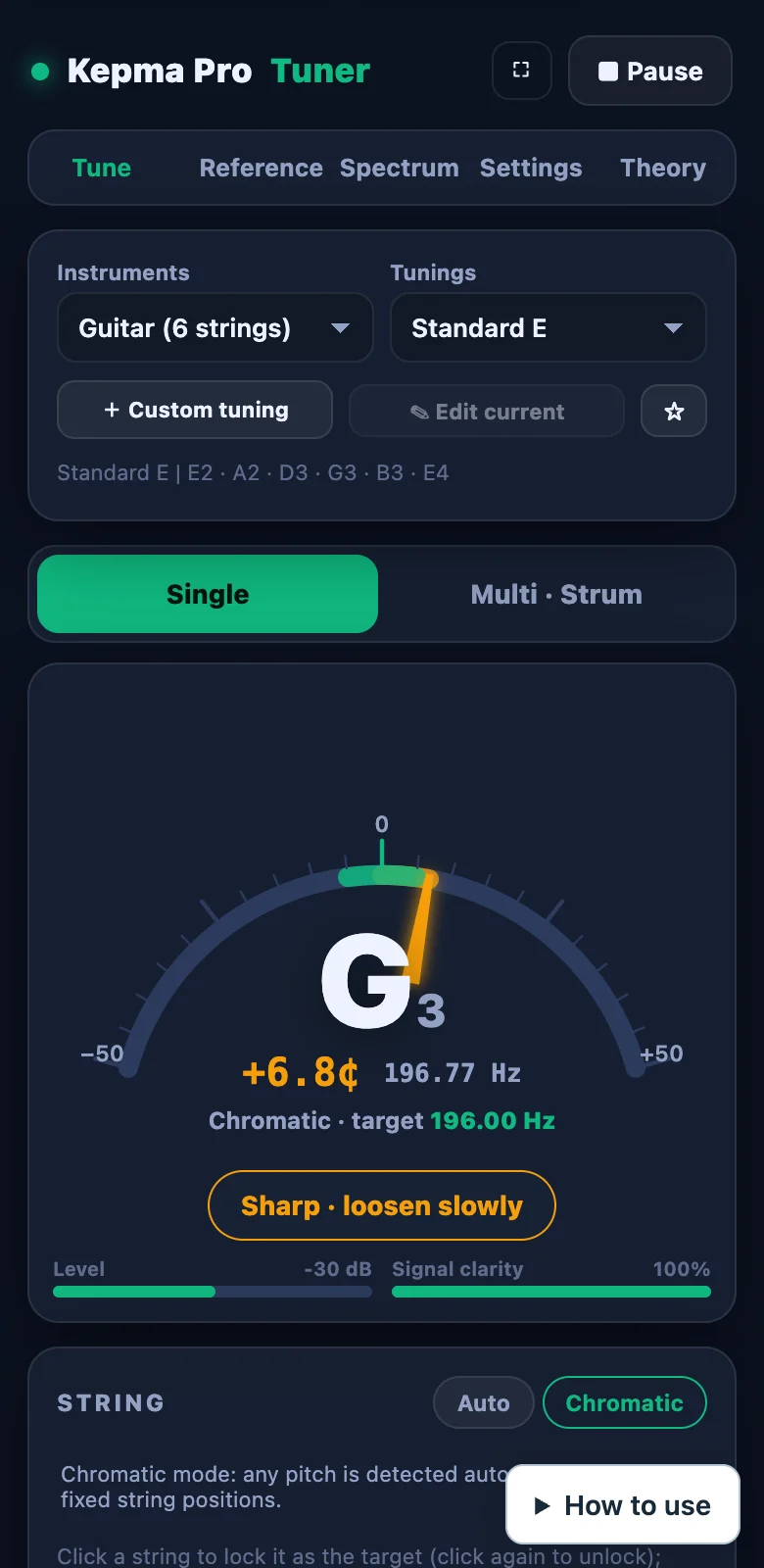
“Single” is the default mode. It listens to one string at a time and gives the finest reading, so use it after changing strings or before a performance.
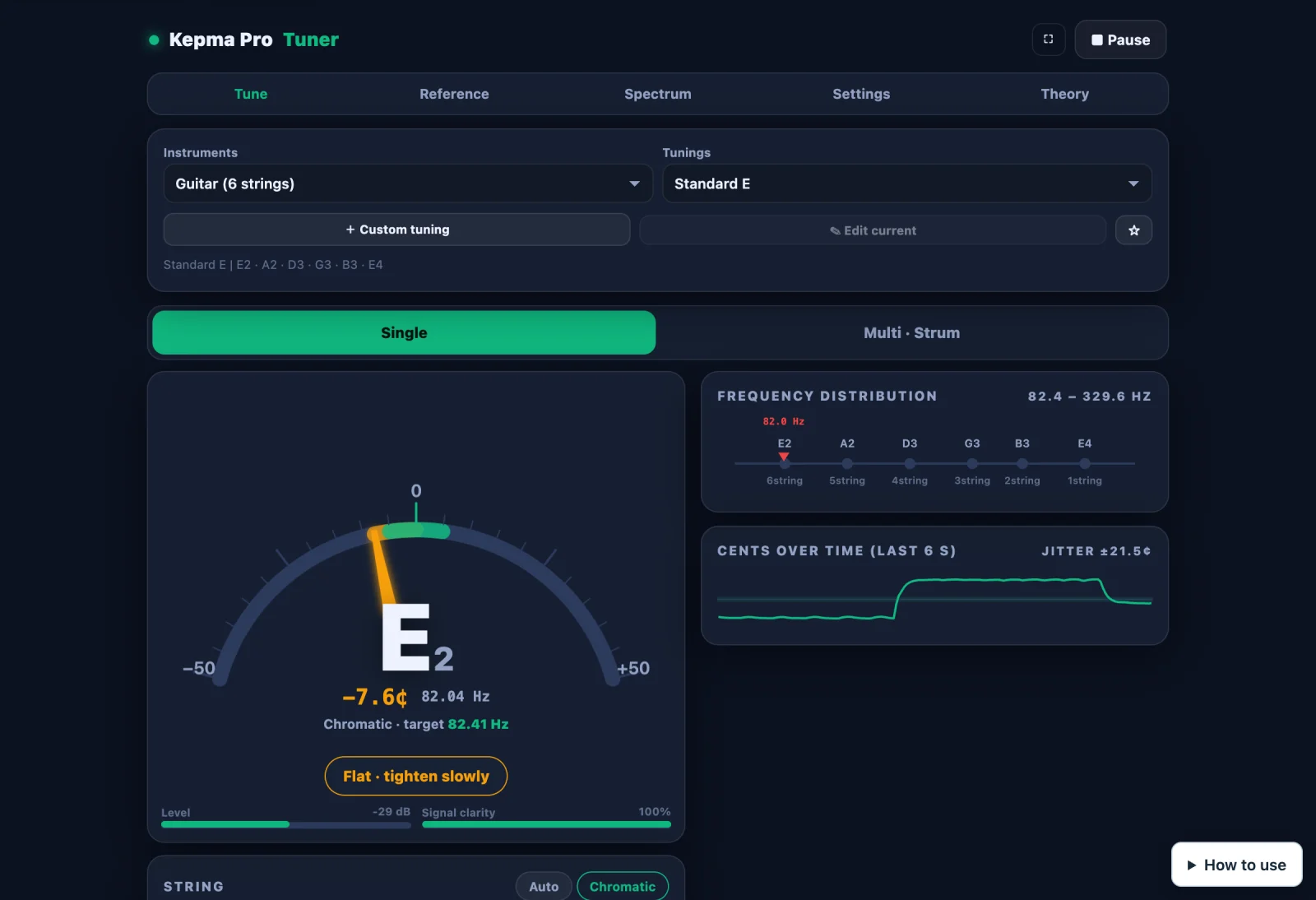
Reading the dial
| On screen | Meaning |
|---|---|
| Note name and octave | The note being heard, for example E2. The number is the octave; A4 is the A at 440 Hz. |
| Cents offset (¢) | How far you are from the target. Two neighbouring semitones are 100 cents apart; negative is flat, positive is sharp. |
| Measured and target frequency | The current reading in Hz, and the Hz this string should reach. |
| Needle | In tune when it points at 0 in the centre. The ends of the dial are −50 and +50 cents. |
| Level / Signal clarity | The reading becomes unstable when the level or the clarity is too low. Move the device closer to the guitar or find a quieter spot. |
Three prompts
- ✓ In tune
Green. The offset is within the tolerance (±5 cents by default). After it holds for a moment you hear a chime. - Flat · tighten slowly
Orange. Within 20 cents: you are close, so turn the tuning peg slowly. - Too high · needs loosening
Red. More than 20 cents away. The prompt also shows how many cents are left.
Strings: auto, chromatic and lock
The “String” panel under the dial lists every string of the current tuning, with two switches on the right:
- Chromatic: On by default. It recognises any pitch, not only the notes of the current tuning. Use it when a string is far off, or when you want to know which note you are actually playing.
- Auto: Works out which string of the current tuning you plucked and uses that string as the target.
- Select a string: Locks it as the target, so the tuner judges only against this string. Select it again to unlock. With a new string that is far from pitch, locking stops it being taken for a neighbouring note.
- Press and hold, or right-click, a string: Plays the reference tone for that string.
On the right, “Frequency distribution” marks each string and the current reading along one axis. “Cents over time” draws the offset over the last 6 seconds and the amount of wobble, which shows how steady the pitch is. It is also useful for singing and vibrato practice.
05Strum mode: all six strings at once
Select “Multi · Strum” to switch. With the microphone on, strum all the open strings once: each string has its own column and they all show their offset together. It suits a quick check between songs at a rehearsal or a gig.
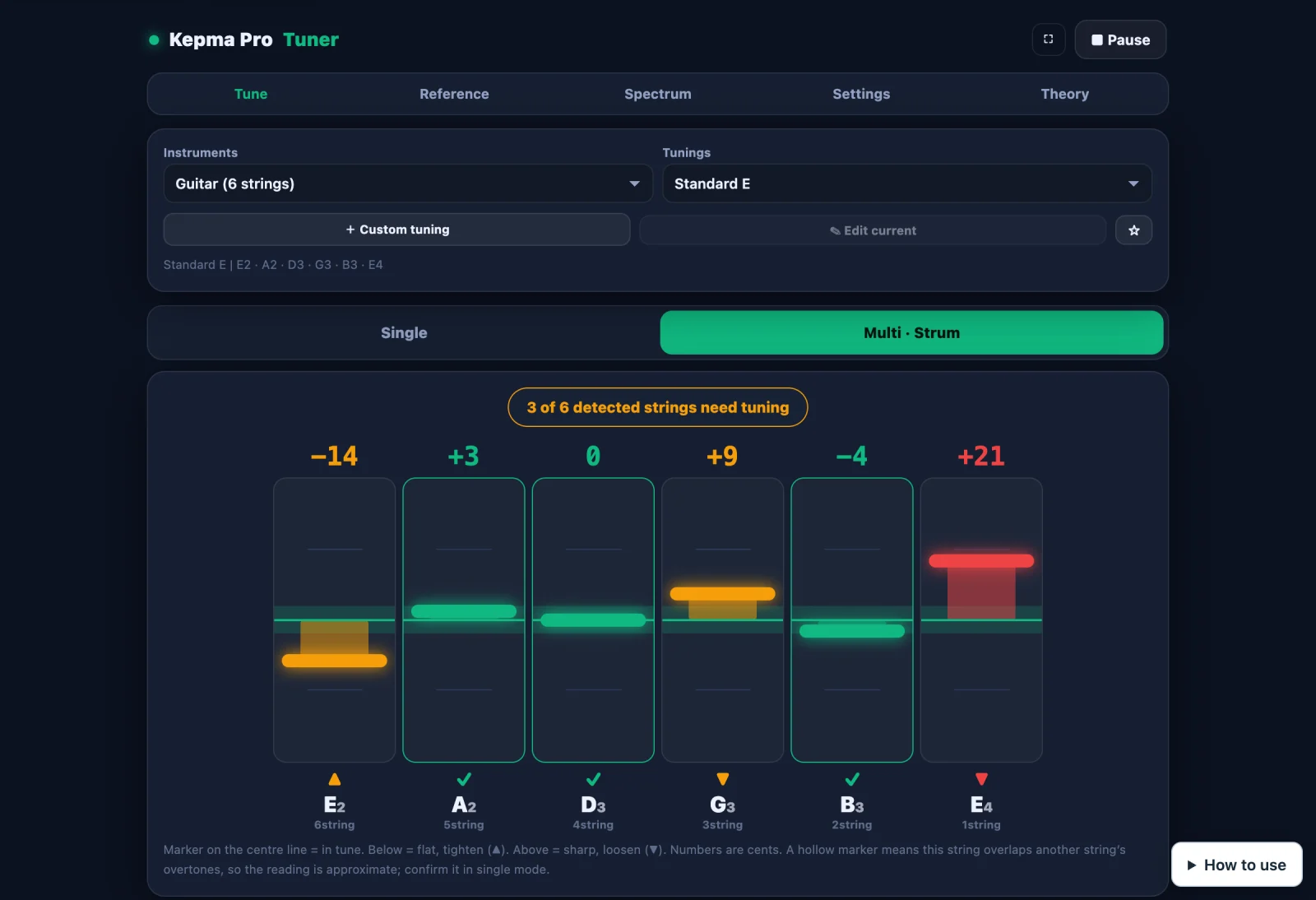
- A marker on the centre line is in tune. Below is flat, so tighten (▲). Above is sharp, so loosen (▼).
- The number above each column is the offset in cents, and the line at the top sums up how many strings need adjusting.
- A hollow marker means the reading for that string overlaps with harmonics of another string and is only a guide. When you see one, switch back to single mode and check that string on its own.
Which mode to use
| Single | Multi · Strum | |
|---|---|---|
| Best for | Fine tuning after a string change, before recording or going on stage | A quick check between songs |
| What you do | Pluck one string at a time | Strum all the open strings |
| Reading | Shown to 0.1 cent, with frequency and trend | A whole number of cents per string, approximate in some cases |
06Reference tones: tune by ear
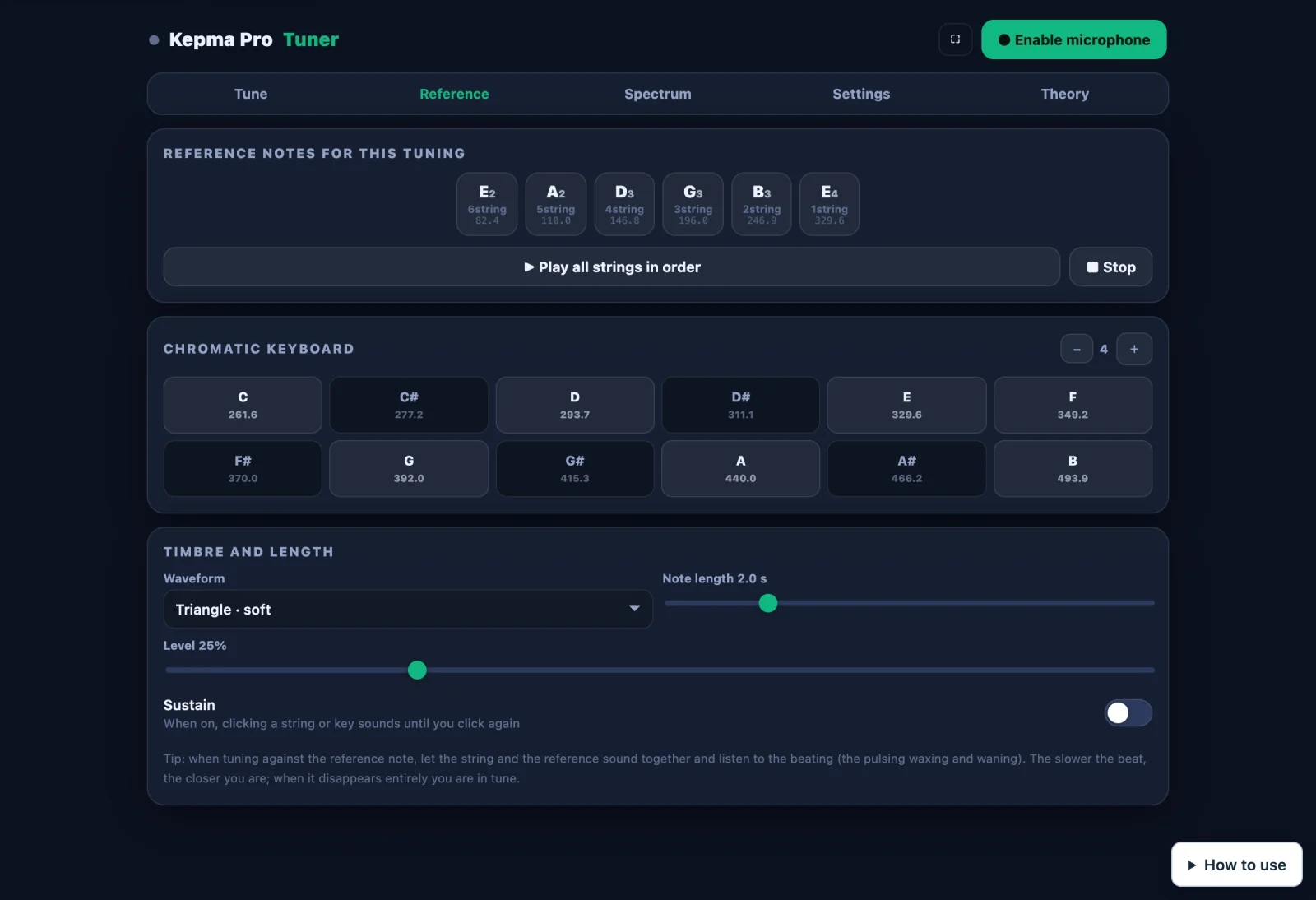
On the “Reference” tab the tuner makes the sound and you listen. It is good for ear training, and for places too noisy for the microphone to hear the guitar clearly.
| Feature | What it does |
|---|---|
| Reference notes for this tuning | Select any string to hear its correct note. “Play all strings in order” plays them one after another, and “Stop” ends playback at any time. |
| Chromatic keyboard | Twelve semitones from C to B. Change octave with − and + to play any pitch. |
| Waveform | Triangle (soft), sine (pure), sawtooth (bright) or square (electronic). |
| Duration and volume | Each note lasts from 0.5 to 8 seconds. The volume has its own slider. |
| Sustain | When it is on, one tap starts the note and it stops only when you tap again, which leaves your hands free for the tuning pegs. |
07Spectrum: see what the sound is made of
The “Spectrum” tab spreads out the sound the microphone hears by frequency. Pluck a string and you can see how strong the fundamental and each of its harmonics are.
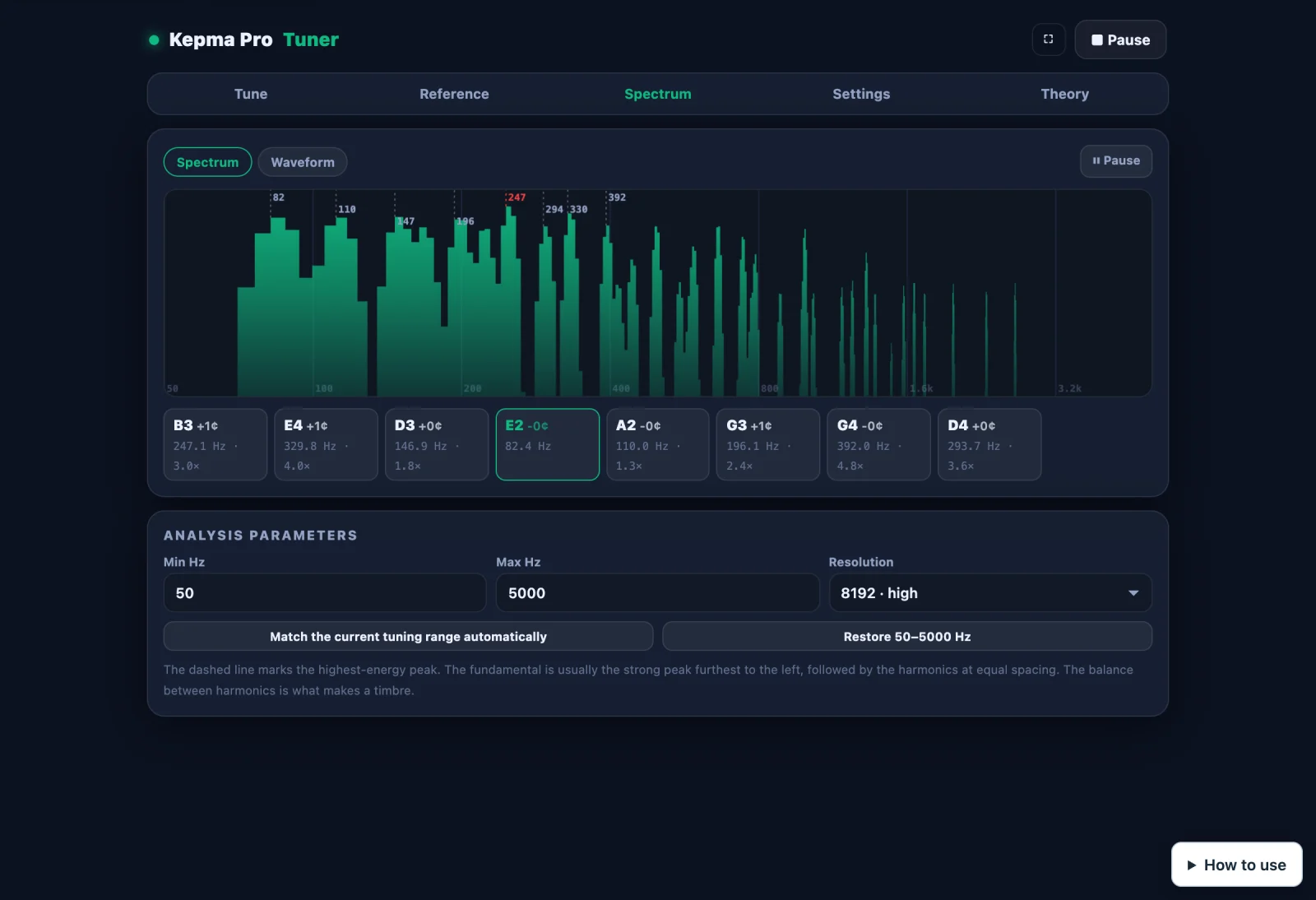
- Spectrum / Waveform: Switch between the frequency view and the waveform over time.
- Pause: Freezes the picture so you can look closely.
- Min Hz / Max Hz: Set the frequency range on display. The default is 50–5000 Hz.
- Resolution: Five steps from 2048 to 32768. A higher value separates frequencies more finely but makes the display slower to react.
- Match the current tuning range automatically: Fits the display to the range of the current instrument in one step.
The strongest peak is not always the fundamental. It may be a harmonic, or noise in the room. To judge pitch, rely on the reading in the “Tune” tab; the spectrum is better for looking at tone and harmonics.
08Settings: adjust it to the way you work
The “Settings” tab has six groups of options. The defaults are fine for everyday tuning, and these are the ones to change when you need to.
Reference pitch
A4 is 440 Hz by default. Use the slider or type a value between 380 and 500 Hz. A row of common values can be chosen in one tap: 415 (Baroque), 430 (Classical), 432, 435, 440 (international standard), 441, 442 (common in European orchestras), 443, 444 and 445. When you play with a fixed-pitch instrument such as a piano or an accordion, set A4 to match it.
Temperament
The default is equal temperament. You can also choose just intonation (major or minor), Pythagorean, quarter-comma meantone, Werckmeister III, Kirnberger III or Vallotti, and set the root of the temperament. A guitar has fixed frets, so a different temperament changes only the targets of the open strings. For normal playing there is no need to change this.
Transposition and display
| Capo / transpose | Moves all targets by −12 to +12 frets. When you tune with a capo on, set it to the fret the capo is on. |
|---|---|
| Transposing instrument | Converts to written pitch for wind instruments in B♭, E♭, F, A, G and D. |
| Note naming | Sharps, flats, German (B / H), solfège Do Re Mi, Chinese, or numbered notation 1 2 3. With numbered notation you can set the key. |
| Dial style | Needle dial, Strobe dial, LED bar. On the strobe dial you are in tune when the pattern stands still. |
| Theme | Pro dark, Cyber neon, Bright clean, Vintage amber, Deep ocean. Try the light theme outdoors in bright sun. |
| Left-handed mode | Mirrors the order of the strings on screen to match a left-handed guitar. |
Tuning behaviour
| Tolerance | How close counts as in tune. The default is ±5 cents, adjustable from ±1 to ±25.Beginners can widen it a little; narrow it before recording. |
|---|---|
| Response smoothing | 1 to 12, default 4. A higher value gives a steadier needle that reacts more slowly. |
| In-tune chime | Sounds once the pitch has stayed within the tolerance for about 0.8 seconds. On by default. |
| Auto-advance to the next string | Locks the next string automatically once one is in tune. Off by default. |
| Keep screen awake | Stops the phone screen from switching off while you tune. On by default. |
| Octave stretch | For piano tuning. Leave it at 0 for guitar. |
Input
| Microphone | Choose which one to use if the device has several microphones or an audio interface. |
|---|---|
| Input gain | ×0.2 to ×6. Raise it if the guitar is too quiet; lower it if the reading jumps when you are very close. |
| Noise gate | Sound below this level is ignored. Set too high, it misses softly plucked strings. |
| Sample the ambient noise floor | Stay quiet for 3 seconds and the tuner sets the gate for the room you are in.It cannot remove every disturbance, such as people talking. Sample again when you move somewhere else. |
Data
Settings and custom tunings are stored in the current browser. They may be lost if you clear the site data or switch to another browser. Use “Export settings and custom tunings” to save a backup file and “Import” to restore it on another device. “Restore defaults” returns every option to its default.
09Keyboard shortcuts
On a computer, your hands do not have to leave the guitar for long:
- SpaceTurn the microphone on or pause it
- 1 – 6Lock the 1st to the 6th string
- 0Unlock and return to automatic detection
- APlay a sustained A4 reference tone
10Common situations
11Five habits for steadier tuning
- Tune up to the noteIf a string is sharp, loosen it to just below the target and then tighten. The peg is always loaded in the same direction, so the pitch is less likely to slip back.
- Wait a moment after pluckingThe harmonics are messy right at the start of the note. Give it about 0.3 seconds and judge once the reading settles.
- Pluck as hard as you normally playPluck too hard and the note starts sharp, then falls back.
- Go round once more at the endTuning the bass strings changes the load on the neck, and the treble strings may drift slightly.
- Let only one string ringIn single mode, rest a hand lightly on the other strings for a cleaner reading.
12Common questions
Nothing happens when I enable the microphone. What should I do?
In most cases the browser has not been given permission to use the microphone. Select the padlock or settings icon next to the address bar, set the microphone to Allow and reload the page. Browsers built into some apps restrict the microphone; if so, open the page in the standard browser on your phone or computer. On a computer, also check that the system settings allow the browser to use the microphone.
The reading keeps jumping. How do I steady it?
Sample the ambient noise in the “Settings” tab first, then move the device closer to the guitar. If it is still unsteady, raise “Response smoothing” by a step or two, or select the string you are tuning to lock it.
The note name or octave does not match the string I plucked.
This can happen when several strings ring together, or when the fundamental of the string is weak. Let only one string sound and select that string to lock the target. If the string really is far off, turn slowly in the direction the prompt shows.
How accurate is the tuner?
The reading depends on the device microphone, the surroundings and the condition of the strings, so we do not promise a fixed accuracy for the whole system. The default tolerance of ±5 cents suits everyday playing, and you can narrow it in the settings when you need to be stricter.
Are my settings and custom tunings saved?
Yes, in the current browser. They may be lost if you clear the site data or change browser, so keep a backup with the export option in the “Settings” tab.
Does it work without an internet connection?
Opening the page and loading the program need a connection. After that the tuning is calculated in the browser, but whether the page reopens offline depends on the browser cache, so full offline use is not guaranteed.
Can I tune instruments other than guitar?
Yes. The instrument menu has presets for bass, ukulele, violin family, mandolin, erhu, pipa, guzheng and more. For an instrument that is not in the menu, choose “Chromatic (any instrument)”, which simply shows the note it hears and the offset.
Open the tuner, start with the 6th string, and bring each string to green.